

Troubleshooting
Fast answers to the handful of things that trip people up: what you're seeing, why it happens, and the one change that fixes it.
Most snags with LVGL Flow come down to a small set of causes: the two halves can't see each other, a required setting is missing, or nothing was selected. Find your symptom below and jump to the fix.
The plugin can't reach the service
What you see: the Connection panel reads Can't reach LVGL Pro in red, the status dot beside your project name stays neutral instead of green, and exports don't go through.
Why it happens: the plugin talks to the service over your own machine, so the two only connect when the service is running and both ends are on the same connection preset.
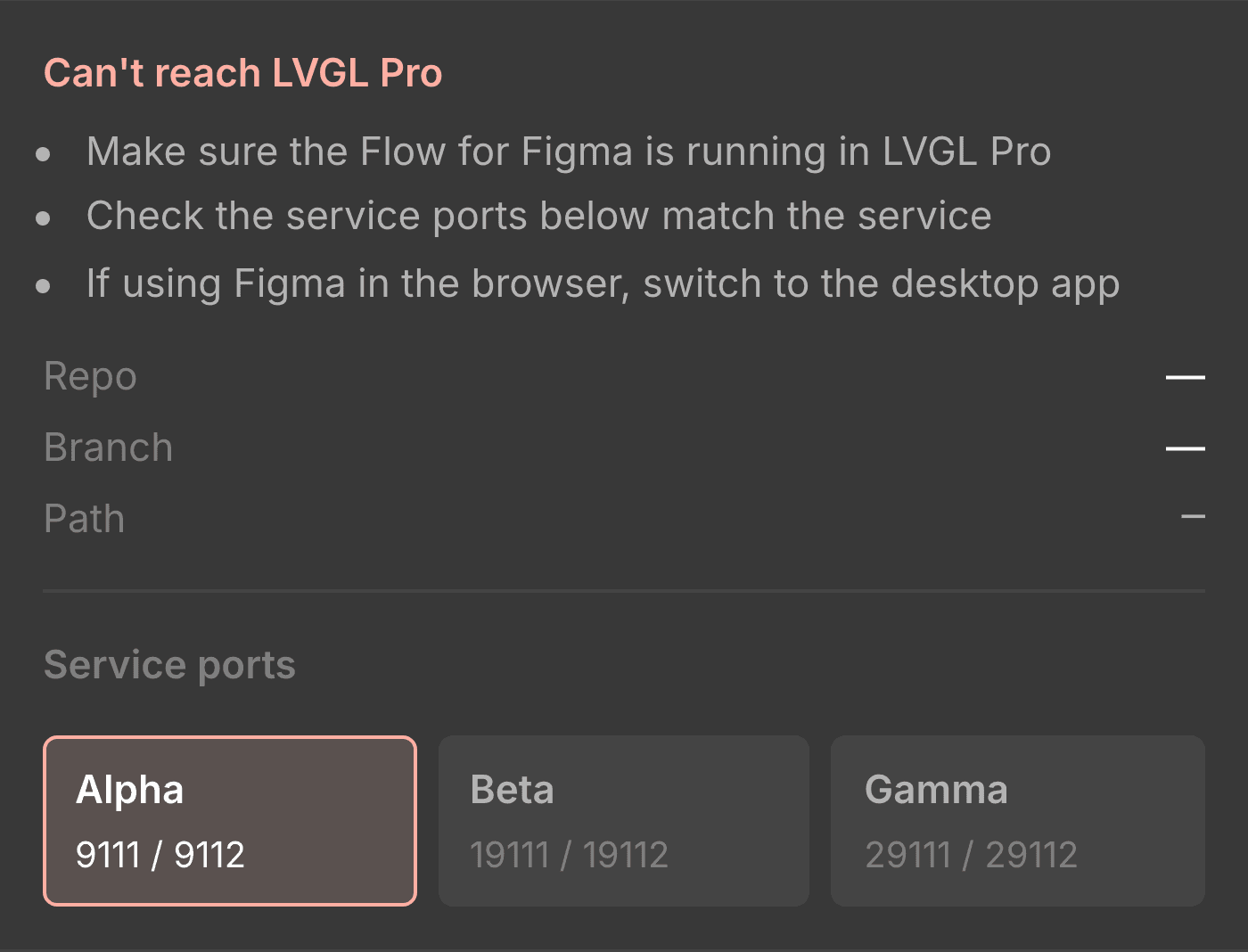
- The service isn't running. Check the status item in LVGL Pro Editor. If it reads Stopped, click it (or run LVGL Figma: Start Service from the command palette). If it reads Error, open the service log to see why it stopped.
- The presets don't match. The plugin picks a preset (Alpha, Beta, or Gamma) in its Connection panel, and the service picks one in its settings. They have to be the same on both ends. Set the plugin's preset in the Connection panel (the plug icon in the Export view) and the service's in its settings, then restart the service.
- You're running Figma in a browser tab. The connection is most reliable in the Figma desktop app. If you can't connect from a browser, switch to the desktop app.
- Local traffic is blocked. The service only ever binds to your own machine, so a firewall normally doesn't matter, but if local connections are locked down, allow traffic between the Editor and the plugin.
"Set the display size before exporting"
What you see: you hit an Export button, nothing exports, the plugin drops you into the Project view with the size field flagged red, and the log notes a warning.
Why it happens: the display size is required. It's written into your project.xml and
everything the service builds is sized against it, so every export is blocked until it's
set. Nothing is broken. The plugin is just routing you to the one field it needs first.
- Fix it once. In the Project view, enter your display's width and height in pixels. The field clears its red state and every export unblocks. You only set this once per file.
- Then re-export. Go back to the Export view and run the action you tried before.
See Project settings for the display size and the other build options that shape your output.
Selected Screens is greyed out, or "no screen-like nodes"
What you see: the Selected Screens row is disabled, or exporting it reports that your selection contains no screen-like nodes.
Why it happens: Selected Screens exports what you've picked on the Figma canvas, and it only recognizes a top-level frame. If nothing's selected, or your selection is only text and shapes, there's nothing for it to send.
- Select a frame first. Pick one or more screens on the canvas. The row's subtitle tracks your selection live, so it updates as you click.
- Or export a wider scope. If you want everything at once, use All Components or a Flow instead of a hand selection.
What each export action covers, and what it bundles, is on the Exporting page.
Your fonts didn't come across
What you see: a FONTS-MISSING.md file appears in your project and some text isn't
using the font you expected.
Why it happens: the service resolves each font through a fixed order (your fonts/
folder, then Google Fonts, then an optional Inter placeholder) and writes FONTS-MISSING.md
to list any it couldn't find. Missing fonts are a non-fatal warning: the export still
finishes; it just flags the gaps so you can fill them. See
Output structure for the full order.
- Drop the font in. Add the missing
.ttfto your project'sfonts/folder and re-export. The service picks it up from there first. - Let it substitute. Turn on Use Inter for missing fonts in the Project view's Font options if you'd rather it fall back to a placeholder than leave a gap.
- Check your offline setting. If offline fonts is on in the service settings, the Google Fonts lookup is skipped on purpose. Turn it off if you want that fallback.
The service won't start, or a port is already in use
What you see: the status item in LVGL Pro Editor turns red with an error, or the service starts but the plugin still can't connect.
Why it happens: the service listens on the two ports of its preset (for Alpha, that's 9111 and 9112). If another program already holds one of those ports, the service can't claim it.
- Switch presets. Move both the service settings and the plugin's Connection panel to a different preset (Beta or Gamma), then restart the service. Because the plugin can only reach a fixed set of declared ports, switch to another preset rather than typing a custom number.
- Restart after any settings change. The service reads its settings when it starts, so a new preset (or output folder) only takes effect on the next start or restart. Run LVGL Figma: Restart Service after changing one.
- Read the log. If it still won't come up, the service log auto-reveals on failure and shows the exact error.
The Copy button in Inspect does nothing
What you see: in Inspect mode you hit Copy on a layer's style, but nothing lands on your clipboard.
Why it happens: Figma's plugin frame restricts clipboard access in the browser. The plugin works around it, but the copy is most reliable in the desktop app.
- Use the Figma desktop app. Running the plugin in the desktop app resolves the clipboard limitation and, as above, makes the service connection more reliable too.
- Select a single layer. Inspect works one layer at a time; pick exactly one and its style snippet appears, ready to copy.
More on reading and copying a layer's style on the Inspect styles page.
Still stuck?
The service log is the single best diagnostic, but if you feel stuck please feel free to Contact Us.
Last updated on
Widget Properties
What each widget's settings mean (a slider's min, max, and orientation, a dropdown's options, a QR code's data), plus how widget states like pressed and checked work.
CLI
The LVGL Pro command-line tool generates and compiles C code, validates and tests XML UIs, and captures screenshots — built for CI/CD pipelines and AI-driven workflows.