

Exporting
Send your design tokens, components, screens, or whole prototype flows from Figma to LVGL Pro Editor with one click.
When your design is ready, Export mode is where you hand it off. Pick what you want to send (your styles, your components, a few screens, or an entire flow) and the plugin passes it to the LVGL Pro Editor, writing the XML files to your project.
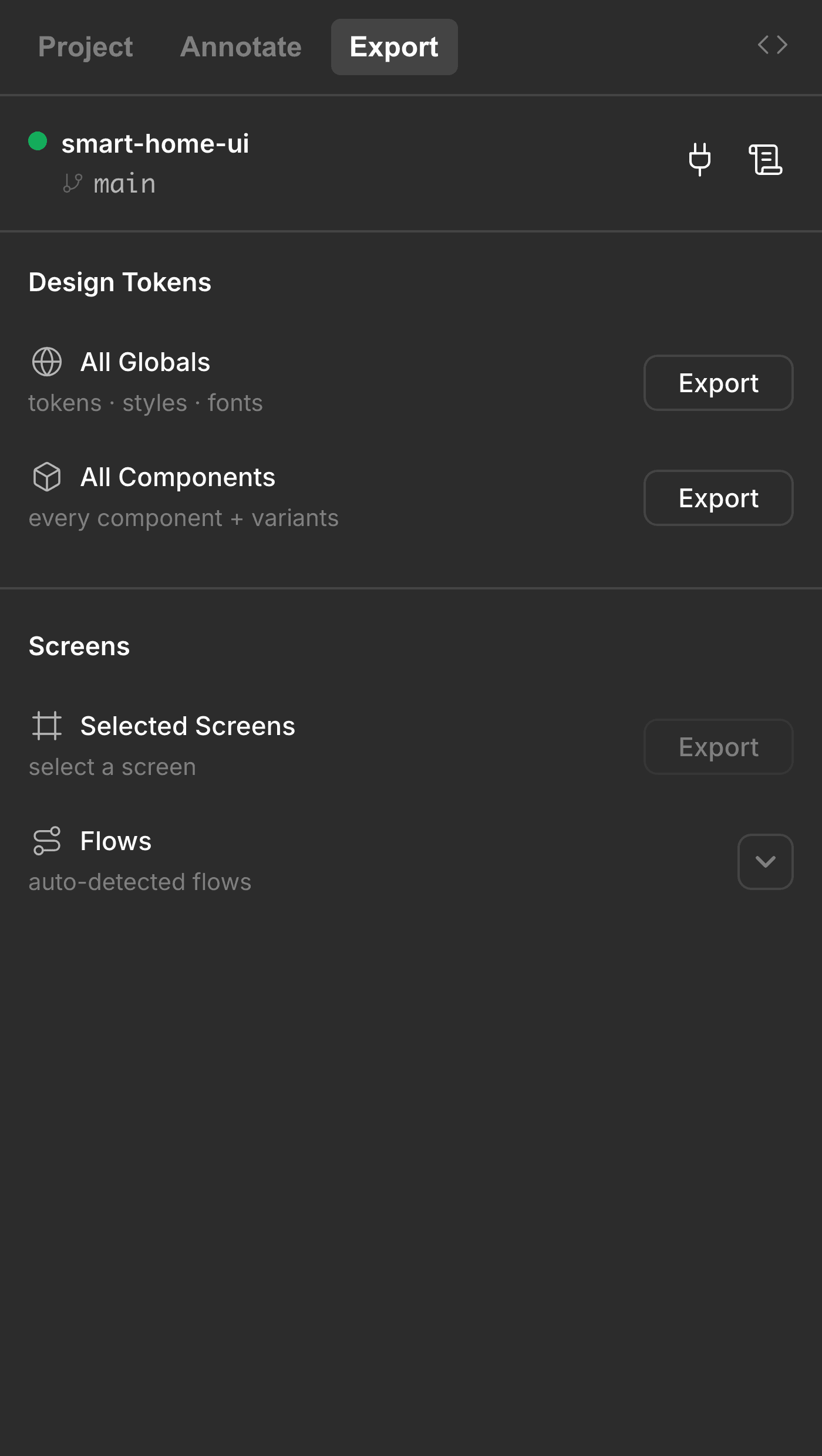
You can't export until a display size is set. It's the one required setting. If you haven't, the plugin drops you into the Project view and flags the field. See Project settings.
The export actions
Design Tokens
Your tokens are the saved colors, fonts, numbers, and text you reuse across a design, these are your Figma styles.
All Globals
Sends every color, font, number, and string in your file, along with your paint, text and effect. The editor turns them into one shared token file your whole project can reference.
All Components
Sends every component and all of its variants. This one always ships your tokens too, so the shared token file stays in sync.
Screens
A screen is one full view, a frame that becomes a screen in the running interface.
Selected Screens
Exports whatever you've picked on the canvas, plus only the components and tokens they actually use. You get a self-contained set of files with nothing extra.
Flows
Exports a whole prototype flow at once: a group of screens wired together by your Figma prototype links. More on this below.
Exporting a flow
If you've wired your screens together with Figma's prototype connections, the plugin can follow those links and export a whole journey in one go: a login flow, an onboarding sequence, a settings path.
The Flows row works a little differently from the others. Instead of exporting on click, it opens a panel.
Open the panel. Click the Flows row and it expands inline. The first time you open it, the plugin traces your prototype links, and you'll see a brief "Tracing prototype flows…" while it maps out how your screens connect.
Pick a flow. Each flow it finds shows up as its own row, with a name and a count of the screens it contains. Any screens that aren't linked into a flow get gathered into a Loose Screens group so nothing is left behind.
Export it. Every flow row has its own Export button, click it and it exports those screens as well as their related tokens and components.
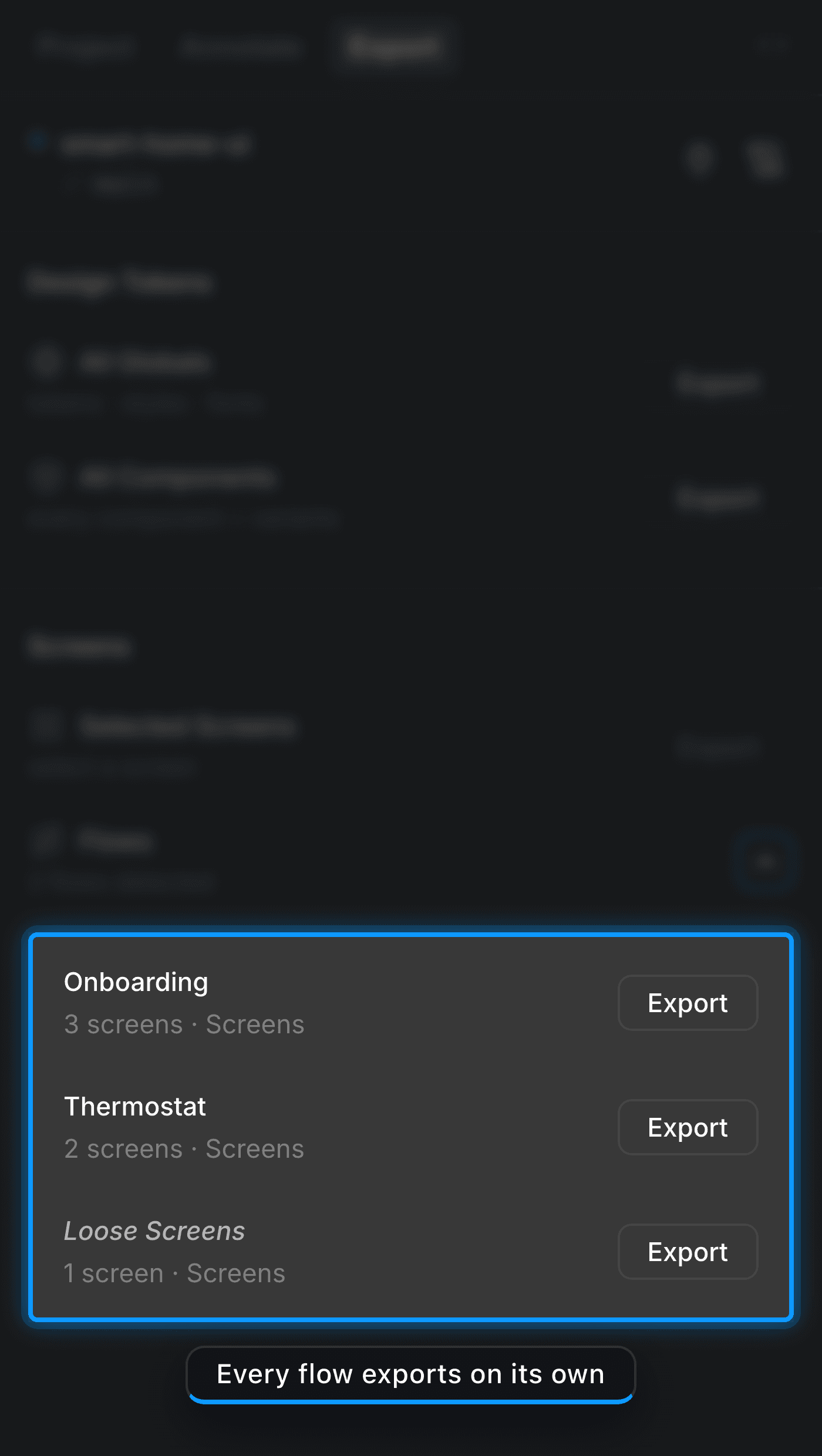
A flow is a set of screens connected by your prototype links, the same word Figma uses. If the plugin says "no flows detected," your screens probably aren't wired together yet; you can still send them with Selected Screens.
After you export
Each row remembers what it did. Once an export finishes, it will provide a short summary "128 design tokens · 14 files · just now." That relative time keeps itself current, so a glance tells you how fresh each part of your project is.
Where do the files go? Straight into your LVGL project on disk: the tokens, components, screens, and images all land in a tidy folder layout that the service manages for you.
Last updated on