

Inspect Styles
Read any layer's LVGL style straight from Figma and copy it into your XML: colors, borders, radius, and size, with no export needed.
Sometimes you don't want to export a whole screen. You just want to know what one layer looks like in LVGL and drop that style into a file you're already writing. Inspect mode is for exactly that: pick a layer, read its LVGL style, copy it.
It's a read-only view. It never writes files and never changes your design, and it works entirely on your machine.
Reading a layer's style
Open Inspect from the </> icon at the top of the plugin, beside the mode toggle. Then
select a single layer on the Figma canvas.
The plugin shows you everything it knows about that layer:
- The LVGL style snippet: the layer's look expressed as LVGL style attributes, syntax-highlighted so it's easy to read, covering its color, border, radius, padding, and size (the visual properties that layer would carry as a widget).
- Layer details: the layer's icon, type, dimensions, and node id, so you can confirm you're looking at the right thing.
If nothing is selected, you'll just see "Select a layer." Pick one node and the panel fills in.
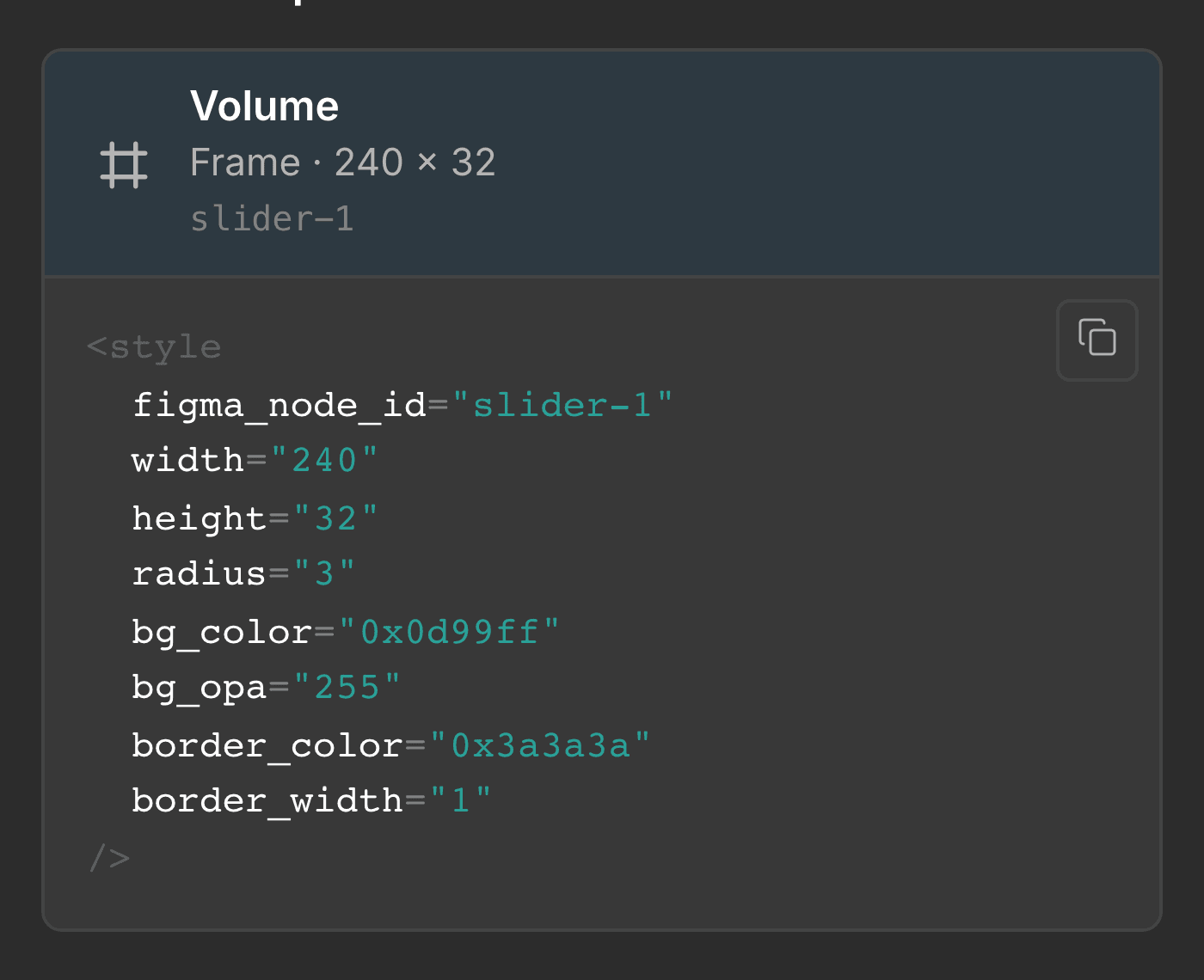
Copying the style
There's a Copy button on the panel. It copies the style attributes only, just the
part you'd paste into a <style> in your XML, not the surrounding tags.
Paste it into the widget you're hand-writing, and you're done. Read here, paste there, with no files written to disk.
Want the plugin to write real files instead of copying snippets by hand? That's what Export is for: it hands whole screens and components to the LVGL Pro Editor. Inspect is the lightweight, copy-one-layer alternative.
Where to next
Last updated on
Subjects & Data Binding
Point a widget at a live value so it updates at runtime instead of showing a frozen design value, and bind a component's variants to a value so one number swaps its whole look.
Output Structure
A map of everything the service writes to disk when you export: which files are yours, which are generated, and where fonts and images land.