Benefits of using FSP#
When building projects with e² studio, the fastest and most robust way to get started is by using the Renesas Flexible Software Package (FSP).
According to the official documentation:
The Renesas Flexible Software Package (FSP) is an enhanced software package designed to deliver user-friendly, scalable, high-quality software for embedded system designs using the Renesas RA family of Arm Microcontrollers, ensuring software compatibility across the RA family, from entry-level to high-performance microcontrollers. With the support of new Arm® TrustZone® and other advanced security features, FSP provides a quick and versatile way to build secure, connected IoT devices using production-ready drivers, Azure® RTOS, FreeRTOS™, and other middleware stacks.
In practical terms, FSP allows you to assemble a stack of software components and build your application on top of them, instead of working directly with low-level hardware initialization.
It takes care of:
- Board setup (clocks, pins, startup code)
- Peripheral drivers through a hardware abstraction layer (HAL)
- Middleware components such as graphics, USB, or networking
- Optional RTOS integration, for example with FreeRTOS
- Writing glue code
This significantly reduces bring-up time and lets you focus on application development rather than integration work.
The Tradeoff#
FSP is designed to generate a project structure that is consistent, maintainable, and works reliably across a wide range of devices and configurations.
Because of this, it introduces a clear separation between generated code and user code:
- Generated files are intended to be managed through the configuration tools rather than edited manually
- Middleware is provided in tested and validated versions
- Updates are typically handled through regeneration rather than direct modification
In most situations, this is exactly what you want. However, there are cases where you may want to go beyond the provided configuration, for example when evaluating a newer middleware version or testing a local modification.
This becomes particularly relevant when working with LVGL.
When Additional Flexibility is Needed#
There are situations where you may want to use a different version of LVGL. For example:
- You want to evaluate a newer upstream release
- You need a fix that is not yet part of the packaged version
- You are experimenting with custom modifications
Using a custom or modified LVGL source tree with an FSP Project#
For the purposes of this example, let's assume a simple case: the display colors appear inverted, and we want to apply a temporary fix by modifying lv_color_make and lv_color32_make.
One option would be to directly modify the LVGL sources located under the ra directory. However, since these files are managed by FSP, any changes would be overwritten the next time the project is regenerated.
A more flexible approach is to keep the generated project structure and integration layers, while supplying a custom LVGL version alongside it.
Creating the project#
To see how this works in practice, we will be working with the EK-RA8D1 evaluation kit. Clone the starter project, and open it in e² studio.
From the command line:
git clone https://github.com/lvgl/lv_port_renesas_ek-ra8d1_gcc.gitOr download the project manually from https://github.com/lvgl/lv_port_renesas_ek-ra8d1_gcc
Open configuration.xml to access the FSP configuration interface, then generate the project content.
e² studio will:
- Download the LVGL sources
- Generate the necessary integration layer (
rm_lvgl_port) - Create the LVGL configuration files
At this point, you can build and run the project, and it will use the LVGL version provided by FSP.
This setup provides a working graphics stack with minimal effort, making it an excellent starting point.
Integrating a Custom LVGL Version#
The first step is to exclude the FSP-provided LVGL sources from the build.
In e² studio:
- Right-click the
ra/lvglfolder - Select Resource Configurations → Exclude from Build
- Apply this to both Debug and Release configurations
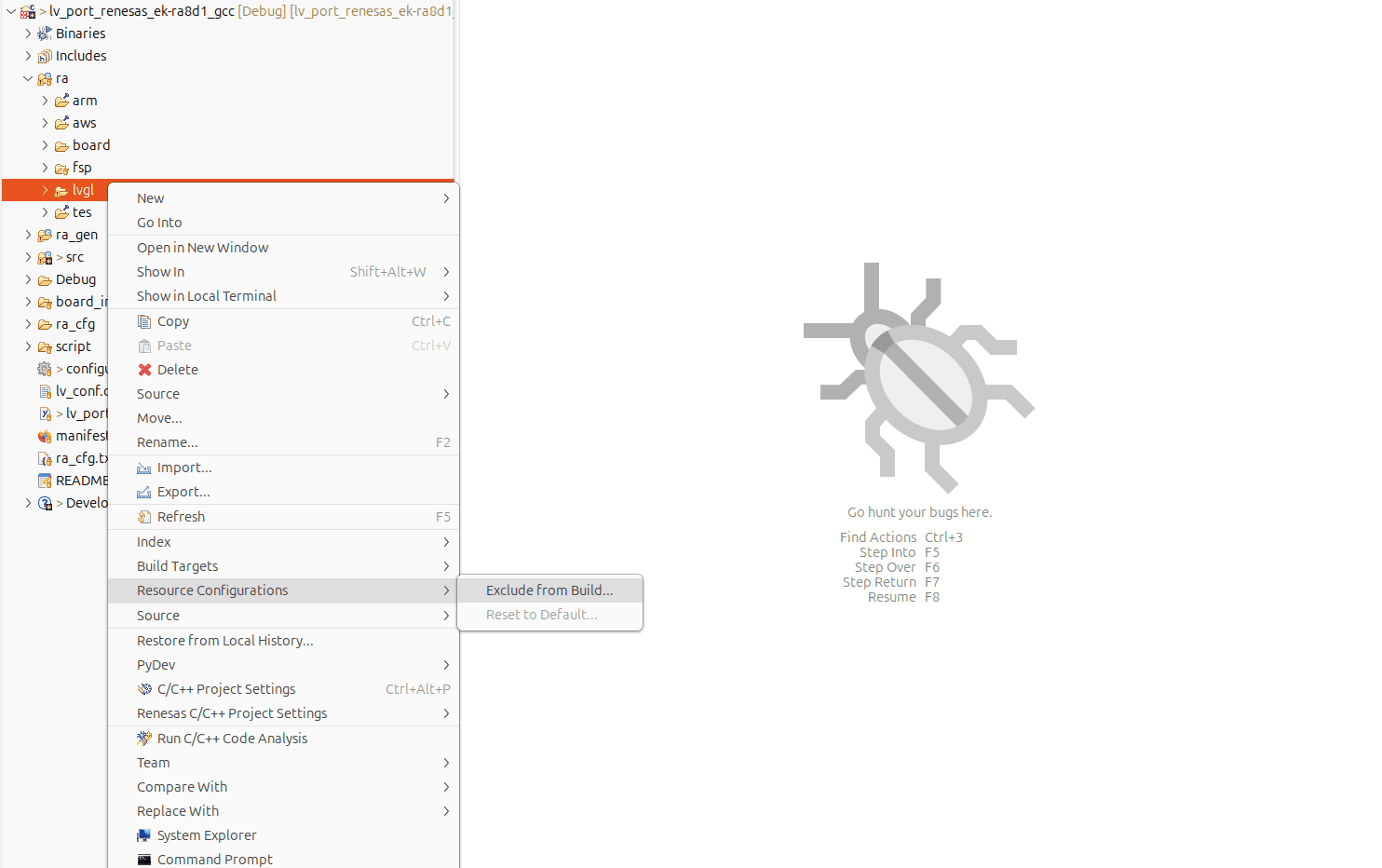
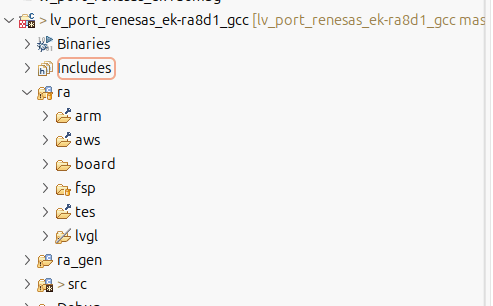
After doing this, rebuilding the project should result in unresolved LVGL symbols. This confirms that the original LVGL sources are no longer part of the build.
Next, add your own LVGL version. A convenient way to manage this is by using a git submodule, but feel free to simply copy the sources into your source tree as well.
git submodule add https://github.com/lvgl/lvgl.git src/lvgl
cd src/lvgl
git fetch
git checkout b913e21abeafc17a6bddb1bed1a2e0d34801bf3aIt is recommended to keep the folder name as src/lvgl, as the library expects this structure for its include paths.
One advantage of this approach is that you can continue using and reusing the configuration generated by FSP.
The generated lv_conf.h file is located under ra_cfg/fsp_cfg/lv_conf.h, and includes a user configuration header from your project. This allows you to adjust LVGL settings without modifying generated files, and without losing changes when regenerating the project.
Applying Custom Changes#
With your own LVGL version in place, you can now safely modify the library.
For example, updating the color creation functions:
lv_color_t lv_color_make(uint8_t r, uint8_t g, uint8_t b)
{
    lv_color_t ret;
    ret.red   = 255 - r;
    ret.green = 255 - g;
    ret.blue  = 255 - b;
    return ret;
}

lv_color32_t lv_color32_make(uint8_t r, uint8_t g, uint8_t b, uint8_t a)
{
    lv_color32_t ret;
    ret.red   = 255 - r;
    ret.green = 255 - g;
    ret.blue  = 255 - b;
    ret.alpha = a;
    return ret;
}After rebuilding the project, the changes should be visible on the display. Some elements such as pre-rendered images may not be affected, but this is sufficient to demonstrate the workflow for the purposes of this tutorial.
Key Insight#
In this setup, FSP continues to provide the project structure, hardware initialization, and integration layers, while LVGL itself is supplied from an external source, while also allowing you to:
- Retain the benefits of FSP, including hardware abstraction and configuration tooling
- Work with a custom or upstream LVGL version when needed
In other words, FSP remains the foundation of the project, while individual components can be adapted to meet specific requirements.
Conclusion#
FSP provides a powerful and well-integrated starting point for embedded development, especially when working with complex stacks such as graphics.
As project requirements evolve, it also allows for flexible integration of custom components, enabling you to extend or adapt parts of the system without losing the advantages of its configuration and abstraction layers.
Understanding how these pieces fit together makes it easier to tailor your project to your needs while continuing to benefit from the FSP ecosystem.