What Are Screen Snapshots?#
Screen snapshots allow you to capture exactly what LVGL is rendering on your display as a binary file. Think of it as a "Print Screen" button for your embedded GUI that saves every pixel to disk.
This tutorial shows you how to implement snapshot capture in your LVGL project. While the specific implementation may need adaptation for your codebase, the core concepts apply universally.
Why Capture Screen Snapshots?#
There are two primary use cases for screen snapshots:
Pixel-level analysis: Opening captured images in tools like GIMP helps you analyze exact colors, measure element positions, and fine-tune your GUI layout. This is invaluable when perfecting themes or debugging visual issues.
Automated GUI testing: By comparing current output against reference images, you can detect unintended visual regressions automatically. This is essential for maintaining GUI quality as your project evolves.
Capturing the Display Buffer#
The first step is to flush the entire display buffer to a binary file. Here's the implementation:
Global Variables#
static FILE* pFileOut;
static BOOL_E bSnapshot;Snapshot Trigger Function#
Create a function to initiate snapshot capture:
/** Flush buffer.
 *
 * Flush buffer into a binary file.
 *
 * @note: data pixel should be formated to uint32_t RGBA. Imagemagick requirements.
 *
 * @param[in] pFileName   Output binary file name.
 *
 */
void DISP_IMPL_flushBuffer (const char_t* pFileName)
{
  pFileOut = fopen(pFileName, "w");

  if (pFileOut == NULL) {
    printf(("[Display] error: %s cannot be opened", pFileName));
    return;
  }

  bSnapshot = BOOL_TRUE;
  lv_obj_invalidate(lv_scr_act());
  lv_refr_now();                    /* Will call our disp_drv.disp_flush function */
  bSnapshot = BOOL_FALSE;

  fclose(pFileOut);
  printf(("[Display] data flushed to %s", pFileName));
}Writing Pixels to File#
Modify your display flush callback to write pixel data when snapshot mode is active:
void APP_DISP_lvgl_flush (const lv_color_t* pData, const DISPLAY_BOUNDS_T* const pPxBounds)
{
  uint32_t data;
  if (bSnapshot == BOOL_TRUE) {
    for (uint32_t i = 0; i < (pPxBounds->dimension.width * pPxBounds->dimension.height); i++) {
      data = DISP_IMPL_lvgl_formatPixel(pData[i]);  /* Function for converting LittlevGL pixel format to RGB888 */
      fwrite(&data,
             sizeof(uint32_t),
             1,
             pFileOut);
    }
  }
}Pixel Format Conversion#
Convert pixels to the required output format. This example converts RGB565 to RGB888 and corrects grayscale colors:
/** Convert lvgl RGB565 pixel to RGB888 pixel
 *
 * @note: convert potential gray colors to true gray color.
 *
 */
static uint32_t DISP_IMPL_lvgl_formatPixel (lv_color_t color){

  lv_color32_t data = (lv_color32_t) lv_color_to32(color);
  uint8_t aux;

  /* Make potential gray color true gray color */
  if (color.red == color.blue) {
    uint32_t dif = data.green - data.red;
    if (dif <= 8) {
      data.red += dif;
      data.blue += dif;
    }
  }

  /* BGR to RGB */
  aux = data.blue;
  data.blue = data.red;
  data.red = aux;

  return data.full;
}The pixel format conversion depends on your LV_COLOR_DEPTH setting. Adjust the DISP_IMPL_lvgl_formatPixel function to match your display configuration.
Converting Binary Files to Images#
Once you've captured the binary data, use ImageMagick to convert it to standard image formats:
#!/bin/bash
# convert_bin_images.bash
OUT_BIN_LIST="${IMAGES_DIR}/*.bin"
for BIN_FILE in $OUT_BIN_LIST
do
  convert -size 320x240 -depth 8 rgba:${BIN_FILE} ${BIN_FILE}.bmp
doneAdjust the -size parameter to match your display resolution.
Automated GUI Testing#
Compare captured snapshots against reference images to detect visual regressions:
#!/bin/bash
#run_test.bash

for i in ${BIN_LIST[@]}
do
  diff -q ${IMAGES_DIR_OUT}/$i ${IMAGES_DIR_REF}/$i
  if [ $? != 0 ]; then
    $SCRIPT_DIR/convert_bin_images.bash ${IMAGES_DIR_REF}/$i
    compare ${IMAGES_DIR_OUT}/$i.bmp ${IMAGES_DIR_REF}/$i.bmp -compose src ${IMAGES_DIR_OUT}/diff_$i.png
    TEST_SUITE_OK=0
  fi
done

if [ $TEST_SUITE_OK -eq 0 ]; then
  exit 1
fiWhen differences are detected, ImageMagick's compare command generates a difference image highlighting exactly where the visual discrepancies occur.
Example Output#
Here are examples showing how snapshot comparison works in practice:
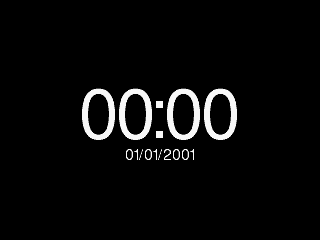
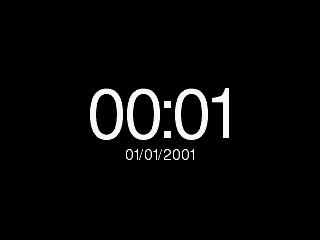
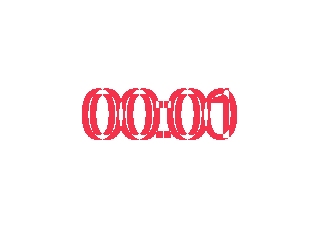
The difference image clearly shows which pixels have changed between the reference and current output, making it easy to identify unintended visual changes or validate intentional updates.