Qt Creator is a powerful IDE that makes it easy to manage non-Qt projects. With the latest release Qt 5.12.0, GCC x64 compiler support for Windows is also included. This step-by-step tutorial shows how to run the LVGL PC simulator in Windows 10 from Qt Creator 4.8.0 with the MinGW 64-bit compiler.
Requirements#
- Qt Creator and MinGW 64-bit environment. Refer to https://www.qt.io/ to install the open source version of Qt environment.
- SDL2 development libraries for MinGW: https://www.libsdl.org/download-2.0.php
- LVGL PC Simulator: https://littlevgl.com/pc-simulator
Copy SDL2 Libraries#
- In the
pc_simulatorfolder, create a subfolder namedSDL2. - Copy SDL header files there.
- Create an
SDL2/libsubfolder and copy libraries for i686-w64 from the SDL2 package.
Setting up Qt Creator Project#
- Open Qt Creator
- From the File menu, select New File or Project.
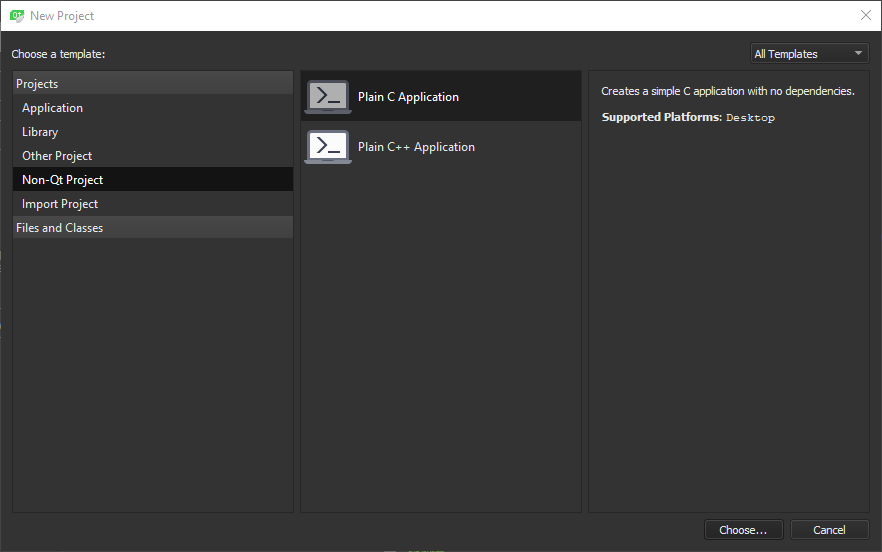
- In the form, select Non-Qt Project and Plain C Application. Press Choose button.
- In the project management form:
- Location: Select project directory location and type a project name (e.g.,
pc_sim). Press Next button. - Build System: Select qmake. Press Next button.
- Kits: Select MinGW 64-bit. Press Next button.
- Summary: Press Finish button.
- Location: Select project directory location and type a project name (e.g.,
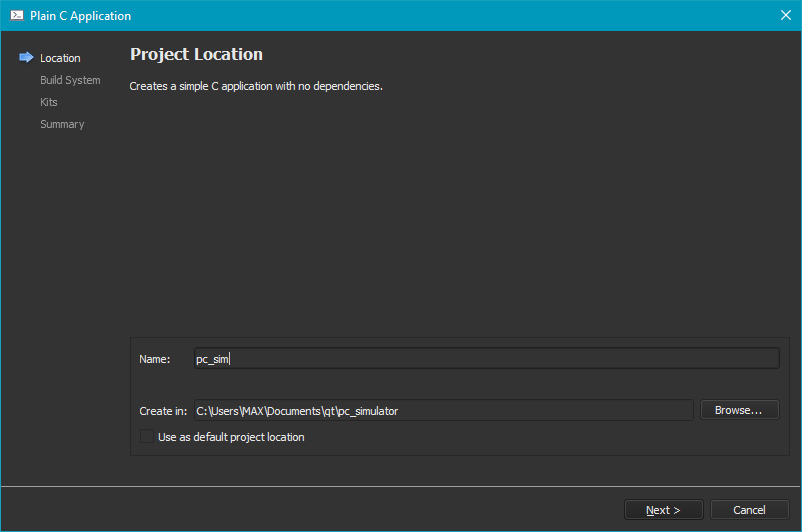
A new subfolder is created with pc_sim.pro, pc_sim.pro.user, and main.c template.
- Close the project from Qt Creator.
- Move
pc_sim.proandpc_sim.pro.userto the main directory. Remove thepc_simsubfolder. - From Qt Creator: open project
pc_sim.pro. Edit filepc_sim.proand remove these two lines:
SOURCES += \
      main.c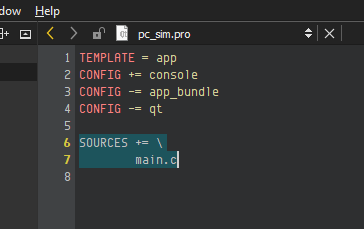
- Save the project.
- In the Projects pane: right-click on the pc_sim project and select Add Existing Directory from the menu.
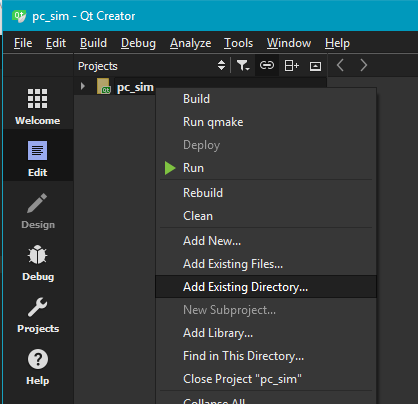
All source files and includes should be already selected by default.
- From the file list: deselect the
lv_examplesandSDL2folders. Then add only.cand.hfiles from thelv_examples/demofolder.

- Edit
pc_sim.proand add these lines to add SDL2 library and includes to the project:
LIBS += -L$$PWD/SDL2/lib/ -lmingw32 -lSDL2main -lSDL2

INCLUDEPATH += $$PWD/SDL2
DEPENDPATH += $$PWD/SDL2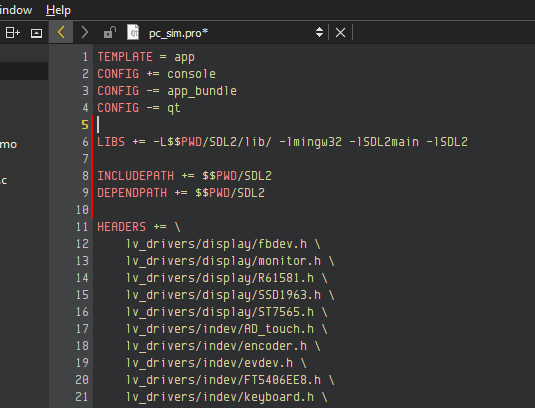
- Save the project.
Build and Run the Project#
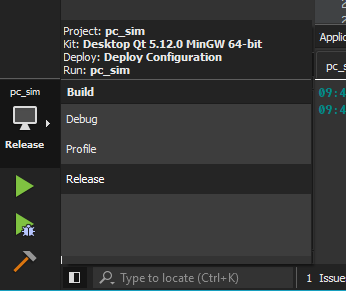
- Select Release build from the left panel icon.
- Run the demo
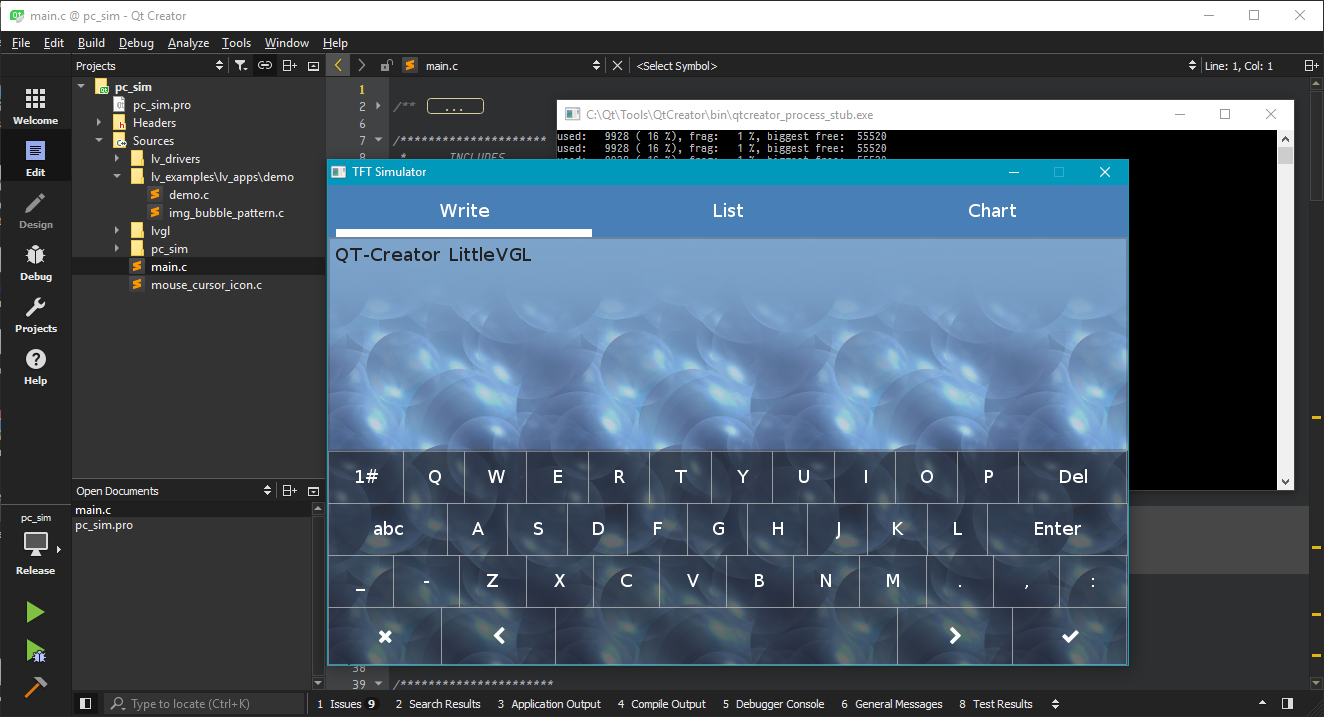
Qt Creator is available for Linux and macOS as well. Adapting the LVGL PC simulator project on these operating systems should be straightforward.
The complete project is available at this GitHub repository: https://github.com/ScarsFun/pc_simulator