This tutorial shows you how to hack the screen from an Apple iPod Nano 6 for LVGL using an Espressif ESP32 WiFi/BLE SoC.
All source code is available for download at the end of this page.
Understanding MIPI DSI#
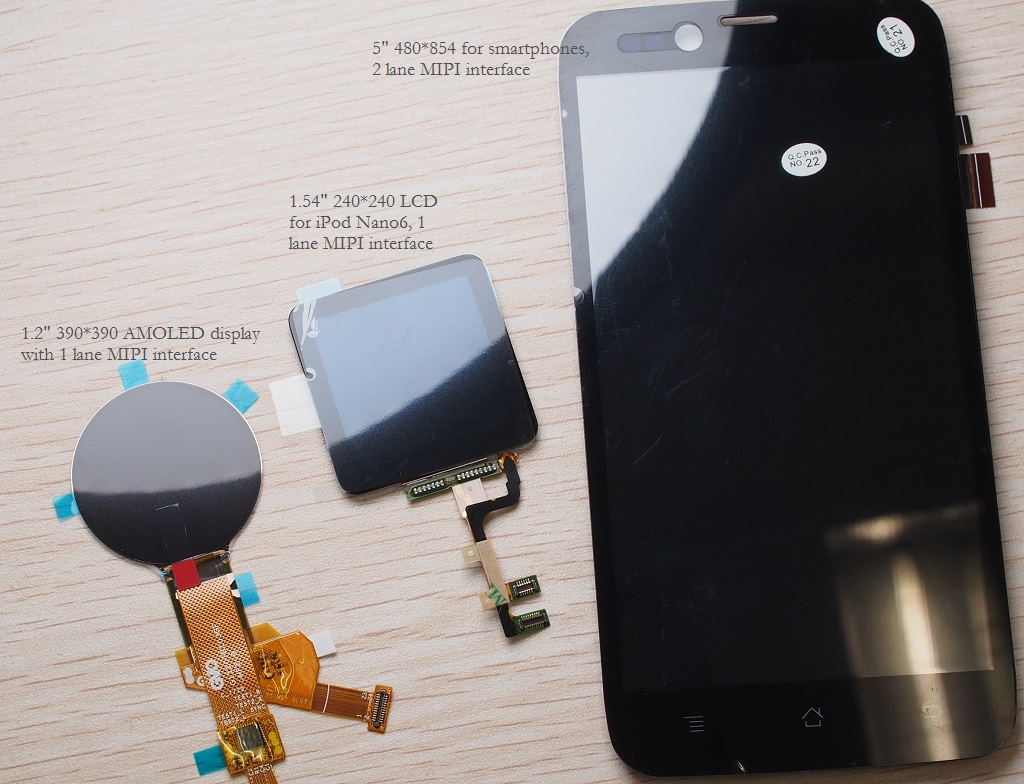
The LCD for iPod Nano 6 uses MIPI Display Serial Interface (MIPI DSI), which is a high-speed serial interface between a host processor and a display module. LCDs in this category are very common for smartphones, tablets, and smartwatches. Reference specifications are available from the MIPI Alliance page.
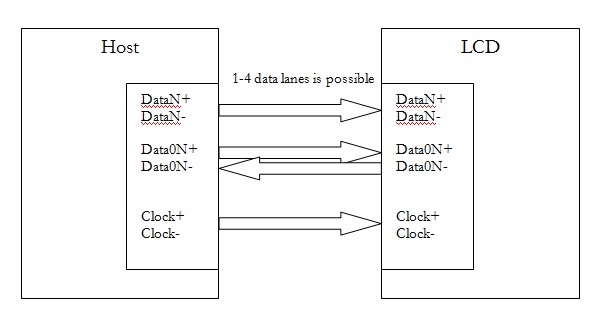
Googling the keyword MIPI brings up several hundred-page PDF documents. It's always fun to learn from specifications like this one. It states "MIPI DSI specifies the interface between a host processor and a display..." with diagrams like this:
If a 100-page specification takes too much time, this EDN article may be all you need to know about MIPI D'PHY RX.
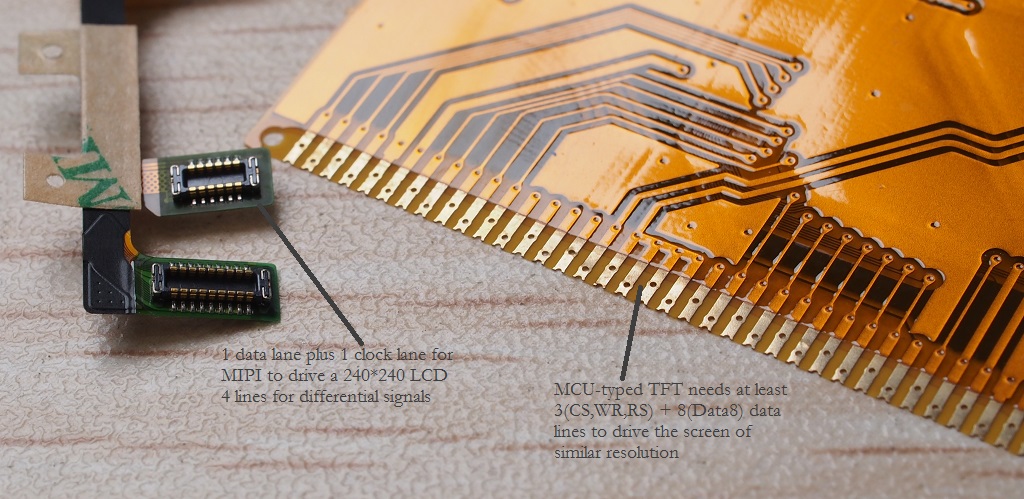
Transmission speed of MIPI is very high, ranging from 1.0 Gbps/lane to 4.5 Gbps/lane with 1-4 data lanes plus 1 clock signal, all using differential buses. Voltage swing driven by the differential buses is also different from RGB/MCU-typed LCDs. For MIPI DSI there are high-speed (HS) and low-speed (LS) modes to drive 200mV peak-to-peak and 1.2V, whereas data of RGB/MCU-typed LCDs is carried with single-ended signals matching VDDIO of the MCU host.
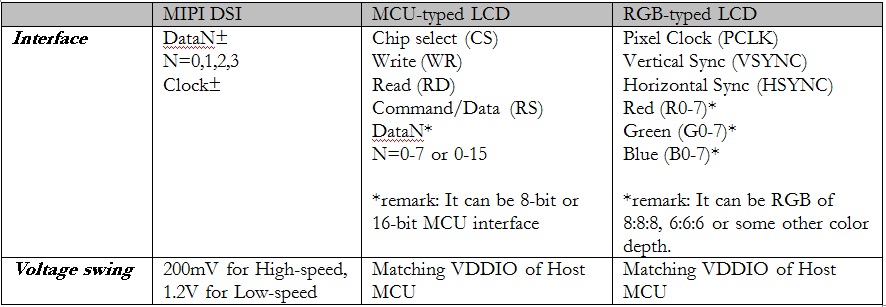
Usually the interface of a MIPI LCD needs much fewer pins and lower voltage than its MCU/RGB counterpart.
The SSD2805 MIPI Bridge Chip#
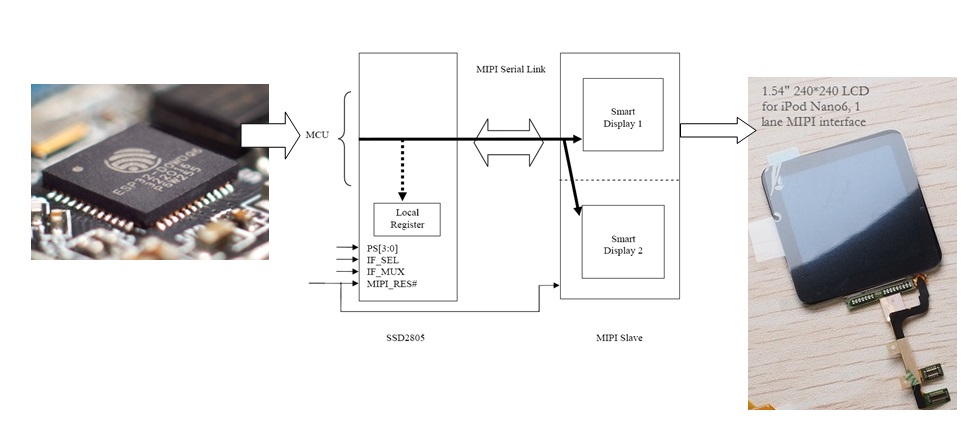
The problem is: how do we drive a MIPI display when there is no DSI output from our MCU (like ESP32) and how to port it to LVGL? Here comes the MIPI bridge IC - SSD2805, which is an interface chip to convert between RGB/8080 video signals to MIPI signals.
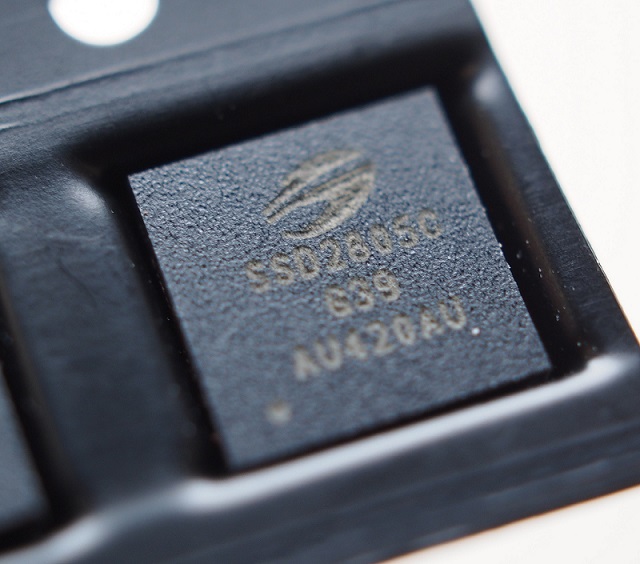
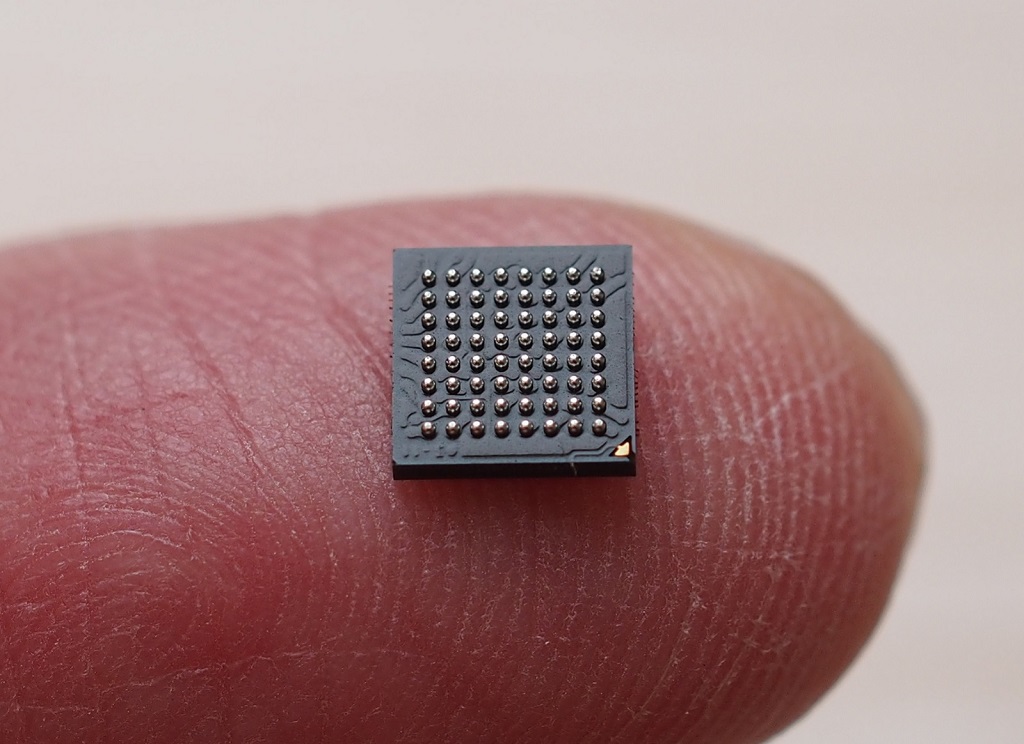
This is a very tiny chip of 5×5mm with 0.5mm pitch BGA!
System Architecture#
ESP32 is programmed with ESP-IDF (Espressif IoT Development Framework). Installation procedures are described in full detail at Espressif's documentation site. My host computer is Windows 7 Pro SP1 64-bit with an Intel Core i5 and 8GB RAM. I followed the default installation path described in ESP-IDF's Getting Started Guide, which provided a mingw32.exe application under C:\msys32\.
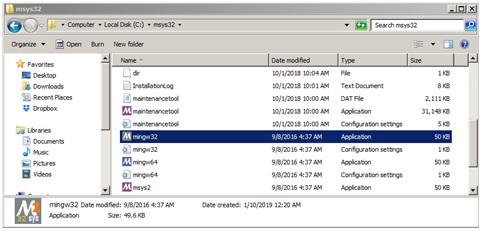
At first I wasn't comfortable with command-line tools like mingw32.exe. After innumerable Google searches I tried to install Eclipse IDE. Unfortunately all hours spent in Eclipse became futile. At the end I found the time spent configuring Eclipse was even more than programming itself, so I gave it up. Don't get me wrong - Eclipse isn't bad, I just wasn't able to get it working.
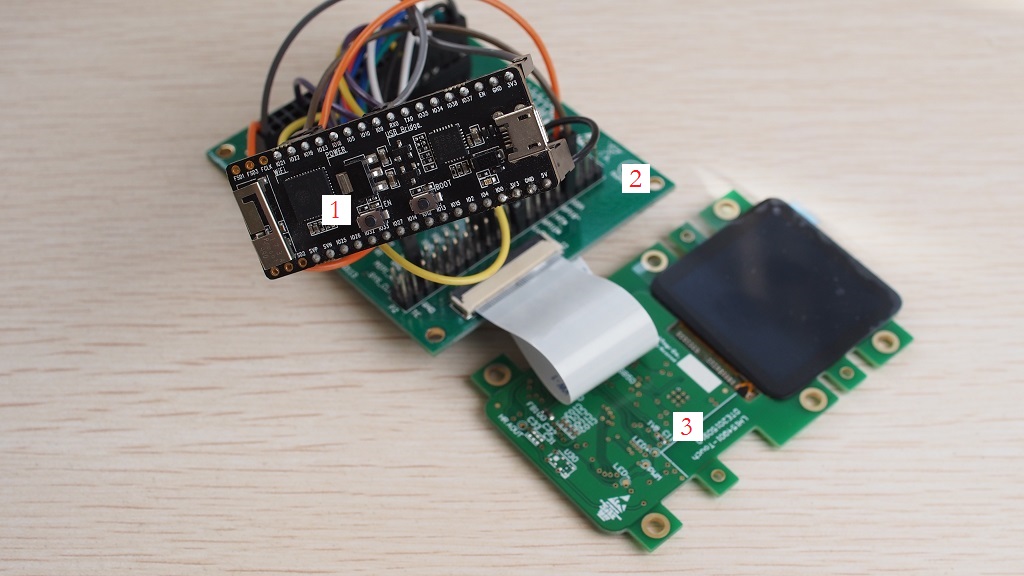
Because there is no standard evaluation kit for an ESP32 + SSD2805 + MIPI Display combo, I was forced to use jumper cables to wire things up with a mess like this:
Hardware Setup#
Boards employed include:
- ESP32-Pico-Kit v4
- SSD2805 breakout board Release 3
- 1.54 inch LH154Q01 MIPI display with CTP on PCB. SSD2541 CTP driver is soldered on this board.
- Plus a lot of jumper cables!
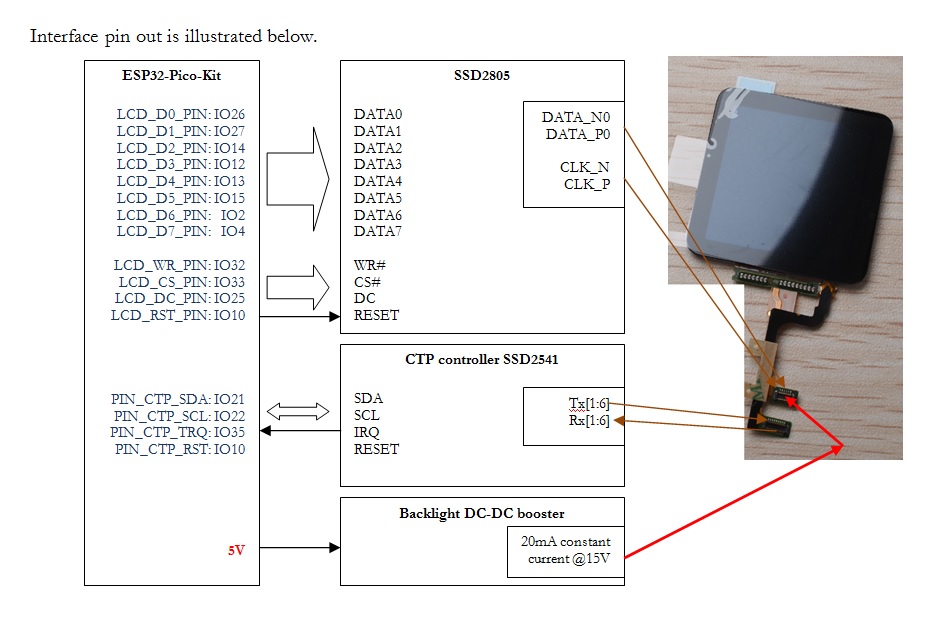
The pinout diagram is illustrated below:
Important Notes#
- On the SSD2805 breakout board, the
VDDIO_CTRLpin should be driven low to conduct the MOSFET forVDDIO_CORE. EXT_5Vshould be supplied with 5V (from USB is OK). This is for the backlight controller IC.- The PWM pin for the backlight controller IC should be driven high (3.3V) to enable it.
- DIP switch setting on the SSD2805 EVK is, from left to right:
01000011(0=ON on DIP switch). PCLK/RD#on the SSD2805 EVK board should be driven high, not floating. This pin is a pull-down pin by default. If there is no reading required, pull it up to drive theRD#pin high forever.
Software Development#
To work with LVGL, the prerequisite is fully working LCD and touch screen drivers outside of it. I started with a program of 5 source files to drive the LCD:
1. i2s_8080_hello_world.c
2. SSD2805_8080_drv.c and .h
3. i2s_lcd.c and .h
Source files i2s_lcd.c and .h were modified from their GitHub source.
ESP32 uses the I2S module to write in 8080 8-bit parallel mode. DMA is used to queue commands and data.
Full source code of the i2s_8080_lcd project can be downloaded at the end of this page.
To compile this project, copy the complete folder to a convenient location (in my case it's D:\esp32\i2s_8080_lcd).
Launch mingw32.exe from C:/msys32:

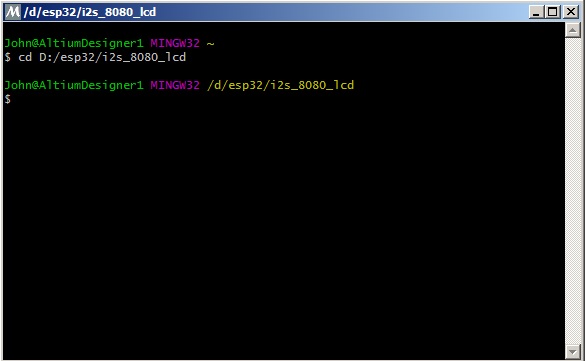
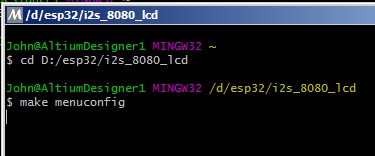
Change directory to the root of Makefile with cd D:/esp32/i2s_8080_lcd:
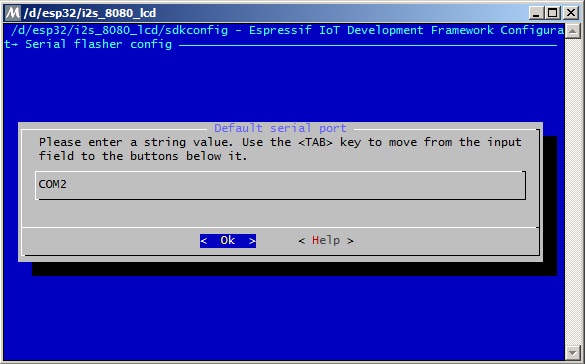
Set the right serial port with make menuconfig:
Browse to Serial flasher config and set it to COM2 (for my case):
Click EXIT several times and click <Yes> at the end to save new configurations.
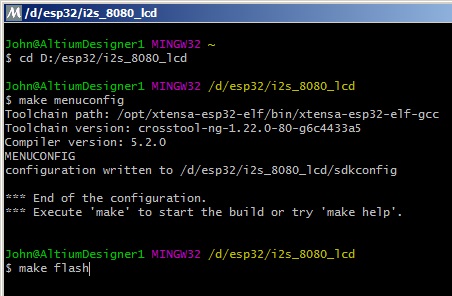
The last step is to make flash:
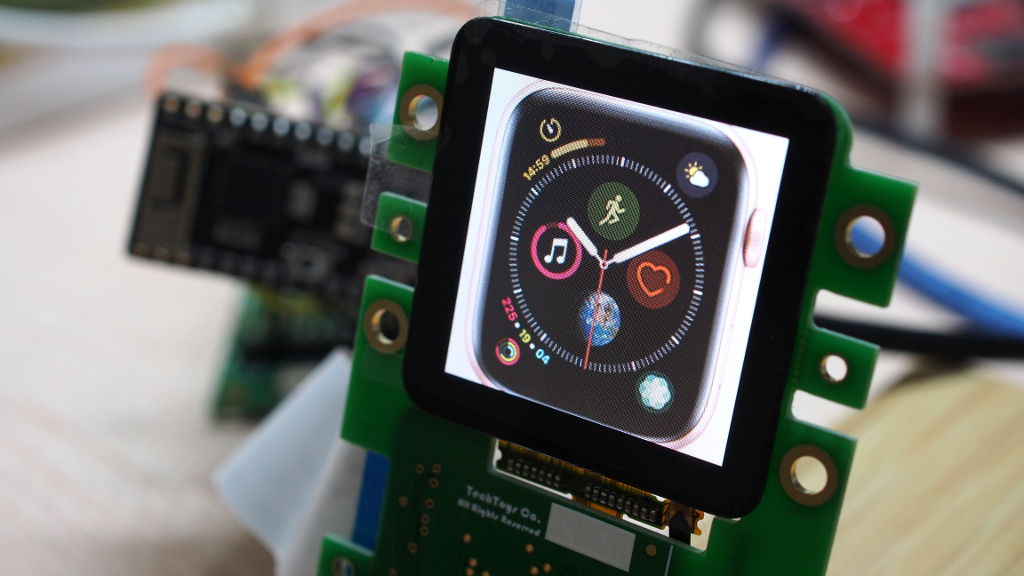
Now a fake Apple Watch is visible!
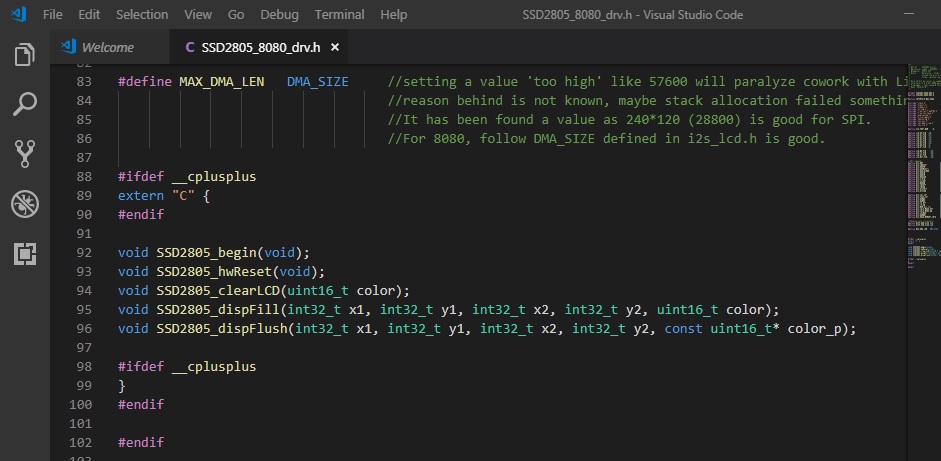
The screen capture below shows all public functions of SSD2805. No text print, no shape draw, or framebuffer operations. All GUI-related features are left to LVGL with a single API function SSD2805_dispFlush(args), which has been designed to match the blueprint required - not more or less. This is also the only function called when screen refresh or update is required.
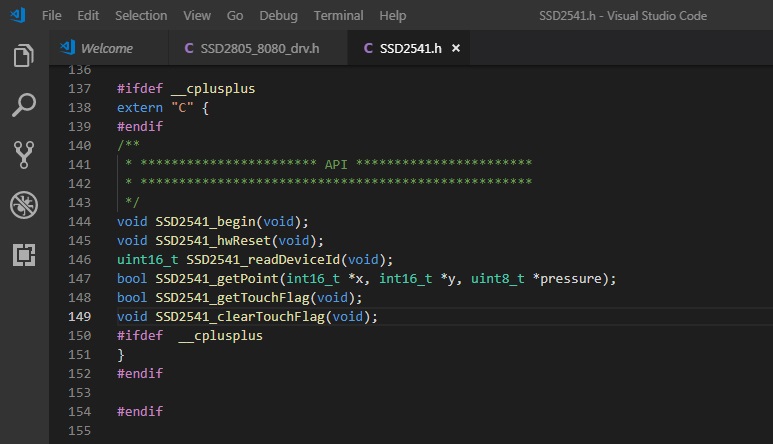
Similarly, the driver for CTP was developed and tested with a basic program that prints coordinates of finger with pressure to the serial port. Screen capture of SSD2541.h is shown below. API function SSD2541_getPoint(args) is the only interface required by LVGL.
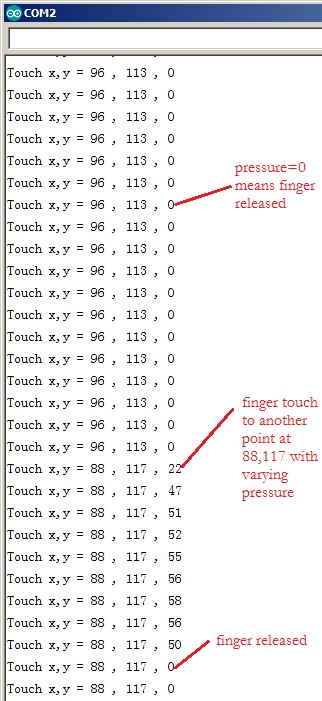
In the mingw32 console, type cd D:/esp32/SSD2541_drv_test, then repeat the same procedure as SSD2805: make menuconfig, set Serial flasher config to COM2 (in my case), save changes, and finally make flash. This time we need a terminal program like Arduino's Serial Monitor. The screen capture below shows a stream from Serial Monitor with finger released from (96,113), touched at (88,117) with varying pressure, and then released again. LVGL requires that touch coordinates should be the last valid point when the finger is released.
Porting to LVGL#
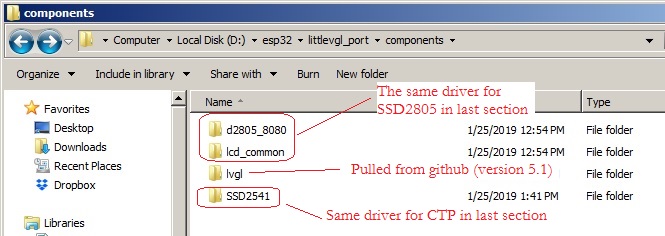
Everything seems ready for porting LVGL. The final program littlevgl_port demonstrates several LVGL features (not all) including label, button, and image display. Browse to the components folder and you'll see exactly the same drivers for SSD2805 and SSD2541. LVGL (version 5.3 commit 17c19fc) has been pulled directly from GitHub.
There are a few things to do before LVGL can be used:
1. Modify lv_conf.h#
Modify lv_conf.h from its template for our screen resolution. This header is located in the same root as Makefile, the project directory.
/* Horizontal and vertical resolution of the library.*/
#define LV_HOR_RES          (240)
#define LV_VER_RES          (240)
#define LV_DPI 1002. Define Display Flush Function#
In the main file littlevgl_example.c, define a local function to call SSD2805_dispFlush(args) and then inform LVGL that screen flush is ready with lv_flush_ready().
/**
 * @brief   API for LittlevGL with LV_VDB_SIZE!=0 in lv_conf.h
 */
static void ex_disp_flush(int32_t x1, int32_t y1, int32_t x2, int32_t y2, const lv_color_t * color_p)
{
    SSD2805_dispFlush(x1, y1, x2, y2, (const uint16_t*)color_p);
    lv_flush_ready();
}3. Define Touch Read Function#
In the main file littlevgl_example.c, define a local function to call SSD2541_getPoint(args) to store the last valid finger position to data->point.x and data->point.y. Pressure is not required for LVGL so a NULL is passed.
/**
 * @brief   API for touch screen
 */
static bool ex_tp_read(lv_indev_data_t * data)
{
    int16_t ctp_x, ctp_y;
    bool sta = SSD2541_getPoint(&ctp_x, &ctp_y, NULL);

    (sta==true)? (data->state = LV_INDEV_STATE_PR):(data->state = LV_INDEV_STATE_REL);

    data->point.x = ctp_x;
    data->point.y = ctp_y;

    return false;
}4. Define Tick Function#
Define a tick function as a heartbeat for LVGL and register this function for ESP32.
/**
 * @brief   Heart beat for LittlevGL
 */
static void lv_tick_task(void)
{
    lv_tick_inc(portTICK_RATE_MS);
}
//...
esp_register_freertos_tick_hook(lv_tick_task); //this is specific to ESP325. Initialize and Register#
The last step is to initialize SSD2805, SSD2541, lv_init(), and register the API functions.
    SSD2805_begin();
    SSD2541_begin();
    lv_init();

    lv_disp_drv_t disp_drv;
    lv_disp_drv_init(&disp_drv);
    disp_drv.disp_flush = ex_disp_flush;
    lv_disp_drv_register(&disp_drv);

    lv_indev_drv_t indev_drv;                       /*Descriptor of an input device driver*/
    lv_indev_drv_init(&indev_drv);                  /*Basic initialization*/
    indev_drv.type = LV_INDEV_TYPE_POINTER;         /*The touchpad is pointer type device*/
    indev_drv.read = ex_tp_read;                    /*Library ready your touchpad via this function*/
lv_indev_drv_register(&indev_drv); /*Finally register the driver*/Results#
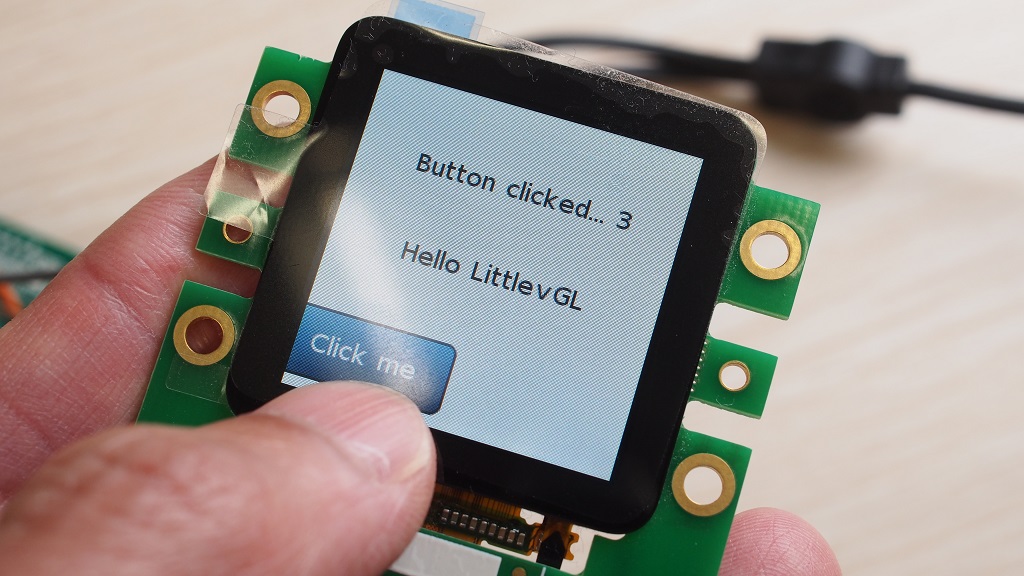
The result is a fully operational capacitive touch panel with button, image display, and text printing!